So, did it hurt when you saw your website redirecting to phishing or malware websites? Alas, even when you have strengthened your website’s defenses, about 30,000 web sites are hacked daily. So it’s very important to know what to do when that day comes!
If your website was hacked, there is a good chance that attackers inserted malicious code that redirects your website to phishing or malware websites to grab traffic. That’s just adding insult to injury – and can really damage your website reputation.
In case your site is redirecting visitors to phishing or a malware site, you will possibly get blacklisted by Google! Google isn’t going to take any chances with its reputation, if your webpage(s) smell even the slightest bit fishy, it’s going to blacklist you. I will cover Google blacklist later on in this article.
A hacker can use a script they created to systematically redirect your website to a Scam Website or an adult website in order to damage the reputation of your own website. Most commonly they will use the following tricks to change the behavior of a website!
Upload or create a file in your WordPress site with the malicious script encoded.
Add themselves as a Ghost Admin on your website.
Execute PHP code they send through a browser.
Collect personal information like Email, for spam purposes.
Change anything on your website for their own purposes, often for spamming.
If a file is added, it’s often named to look like a legitimate file that looks like part of the WordPress core files. The file could be named sunrise.php, wp-users.php, wp-system or wp-configuration.php or something similar. Typically hackers add the malicious scripts to .htaccess, wp-includes, wp-content/themes, wp-content/plugins or wp-content/uploads folders, or may also change your wp-config.php file.
Examples
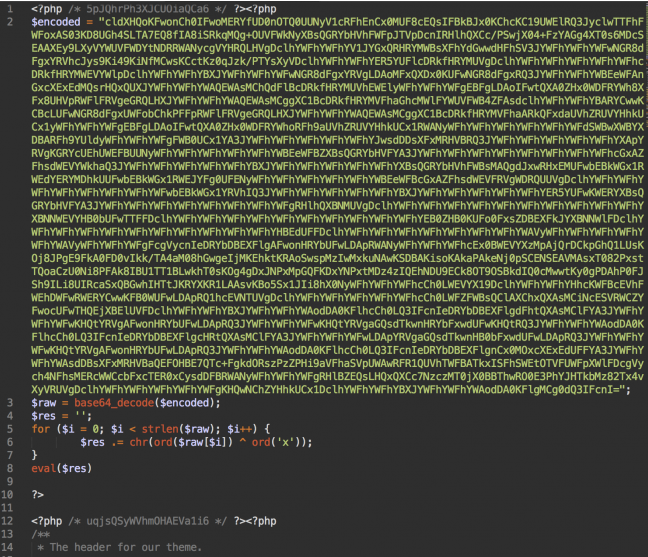
Malicious Redirects in Header
Encoded malicious code is added at the top of the header file of your active WordPress theme: header.php
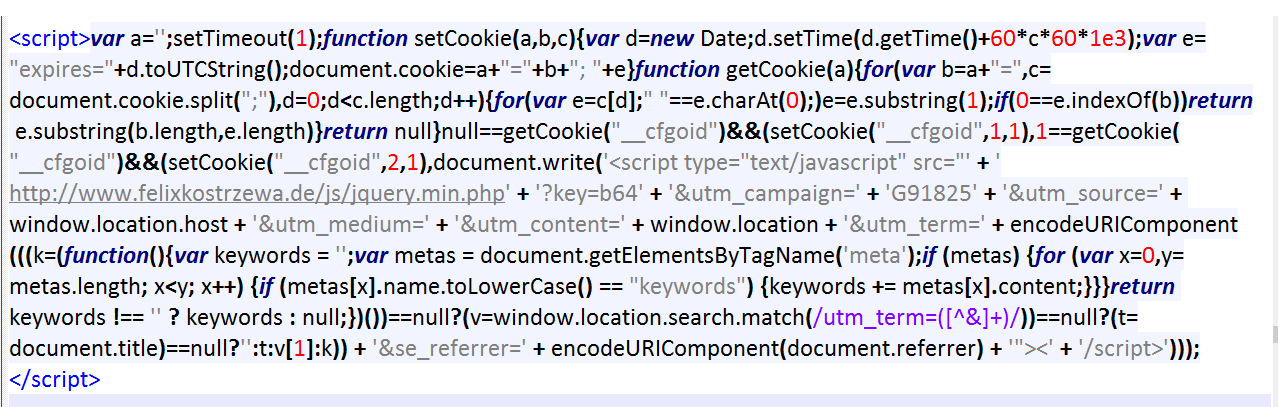
Malicious Redirects in Footer
Malicious script is added in the footer of the active WordPress theme.
So, we’ve already talked about the methods you may check and find out if your website has been injected with malicious scripts, but I feel like it’s a good idea to spend additional time in what we refer to in one of our previous articles as the “symptoms” of a site being hacked and blacklisted. Not every blacklisted website will exhibit those signs, however most of them can help you find out if your site is in trouble:
There is a huge/sudden traffic to your website for specific keywords that have nothing to do with your website content – particularly related to pharmaceuticals.
Your site is suddenly redirecting to anonymous websites not in your possession.
Ghost Administrators appear in your website’s dashboard who weren’t created by you or other legitimate admin users.
Your website is unexpectedly flagged as containing malware in search engine results or by desktop or cellular anti-virus detection software program.
Your hosting provider moved your website to junk or quarantine mode.
It’s important to keep in mind that Google can provide various safety warnings as well. These warnings may appear in the search engine results page where your website is indexed. Most common warnings you will see are listed below.
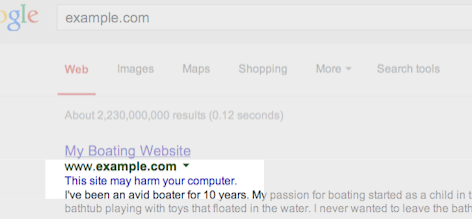
This site may harm your computer
Example: Google has detected malicious code on your website.
This warning appears when Google believes your website contains a Trojan which is triggering a download popup that is malicious – like fake Anti-Virus popups, Fake shopping discounts etc.
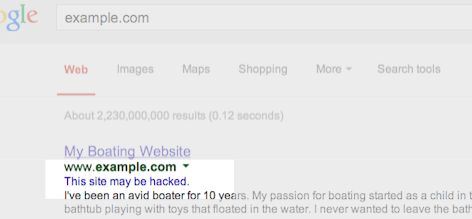
This site may be hacked
Example: Google has detected your site has been hacked.
This warning appears when Google has a solid reason to believe the site has been compromised or hacked and taken over by someone other than you.
A Step-by-Step Guide For Removing The Malicious Scripts And Redirections
Step 1: Scanning Your WordPress Site
In case you suspect that your website has been hacked with a malicious script there are various ways of checking, however, before you run any of those, you need to generate a complete backup of your website. Even though your site has been hacked, there’s still a chance things could get worse before they get better.
Having a backup is essential. If you accidentally make a mistake while cleaning your site, your backup acts as your fail safe. You could restore your website to the point where you first began working on it and keep investigating from there as if nothing else happened. Once you have backed up your complete website, you’re ready to get started.
Extra Tip: Here are some websites that offer free scans for malicious files.
Sucuri SiteCheck – Helps you to know if your website has been hacked or blacklisted. This is a great first step in figuring out whether or not there’s a problem.
Norton Safe Web – You can quickly find out if there are any threats related to your website.
VirusTotal – One of the best online scan website available to scan your website or IP Address for Common Viruses, Malicious scripts, Hidden Backdoors, etc. It uses more than 70 antivirus scanners and URL checkers to get more accurate results.
Web Inspector – This website scans for backdoors, injected scripts, malicious redirections code with a fairly detailed report.
Step 2: Locate the Suspicious Code
Think your site has been hacked? We remove the malware, close the hole it came through and lock the site down for a flat $249. See malware removal →
There are various places where you can look to locate the malware on your website. It’s not always an easy way to scan the code on each page of your website chunk by chunk. Sometimes, the culprit is enclosed somewhere in your server. Still, there are some places that attackers target most. You’ll need SFTP or FTP login details to get access to these places to start the malware cleaning process.
In case your website is suddenly redirecting to an anonymous website(s), you need to take a look at the following areas for suspicious code:
Core WordPress Files
Your website’s index file (check both index.php and index.html!)
.htaccess file
In case your website is triggering visitors for downloads, you should take a look at the following places:
Header.php: Current Theme header file
Footer.php: Current theme footer file
Your website’s index file (check both index.php and index.html!)
Your theme’s files
You can also take advantage of the Google Diagnostic Page to figure out specifically what part of your website has been compromised. Is it only 1 page? One directory? Or the entire website?
Step 3: Dig Deeper: Pretend You’re a Bot or User Agent
Sometimes running tests to analyze if your website is infected with malware would put your own machine in danger. So, to bypass this, you can use cURL CLI (Command Line Interface) to pretend you’re a Google bot or a user agent.
You can enter the following command to emulate a bot through an ssh client:
$ curl --location -D - -A "Googlebot" https://somesite.com
Once you enter this, you should look for something that doesn’t make sense in the code. So, bits which are in a different language than your own or content that looks like gibberish in general. Yes, you’ll need to recognize html at the least, here. Something in an iFrame or script tag has to grab your attention, too.
You can also use this little code to emulate a user agent(again through an ssh client):
$ curl -A "Mozilla/5.0 (compatible; MSIE 7.01; Windows NT 5.0)" http://www.somesite.com
You can edit or replace the “browser” tag which is referenced here depending on your needs.
A few different commands you might want to get familiar with are Grep and Find which work through an ssh client. These commands will help you to discover where the hacking took place on your website, so then manually you can remove the malicious code that placed you on Google’s Blacklist.
Here’s a list of useful resources to speed up the process of cleaning your site on the terminal.
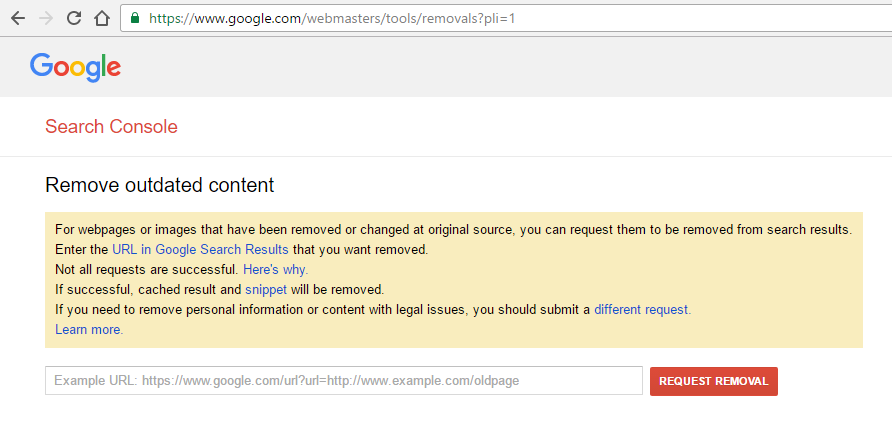
In case your website has been injected with malware, you’ll need to remove the malicious scripts that caused the redirections to the abusive websites. If the attackers created new pages with malicious code, you can remove them from search results by going to Google Search Console and using the Removals tool. Next you should update the theme, plugins, and install any new core updates that are available. Make sure everything is as up to date as possible. This will reduce your website’s vulnerabilities.
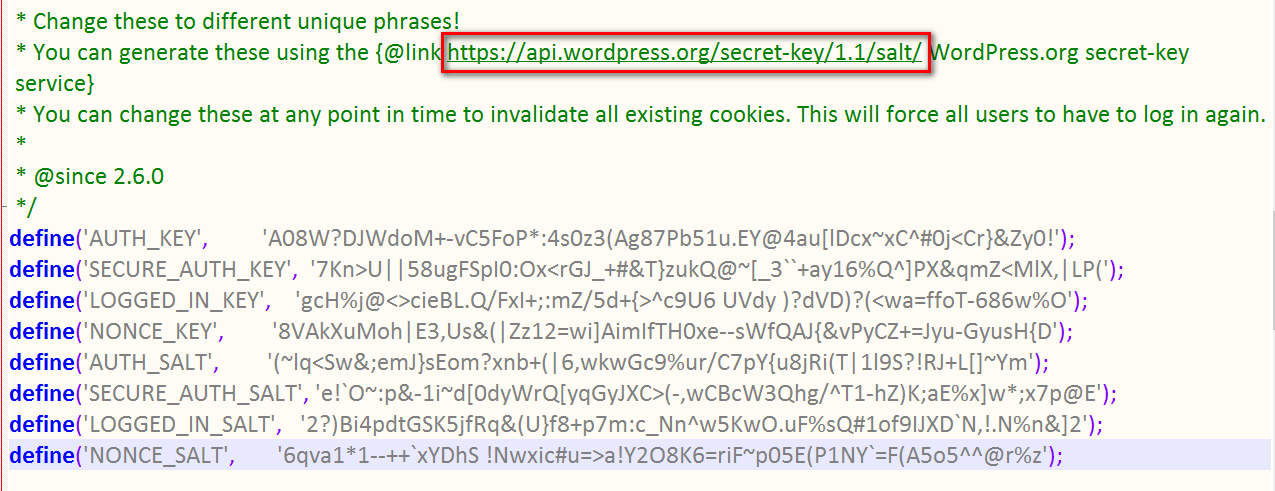
Finally, change all of the passwords on your website. And I mean all of them! Not just the WordPress Administrator Password, you also need to reset the passwords for your FTP Account, Regenerate WordPress Salt Keys, Database(s), Hosting, and anything else related to your website to ensure the security.
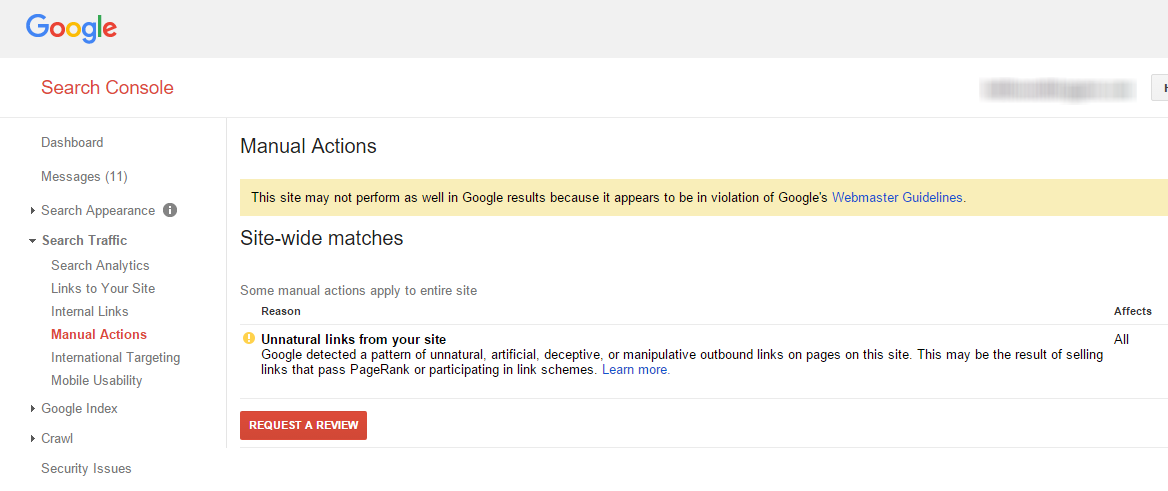
If your website was blacklisted due to malicious redirections, and it’s been removed from Google’s search results, you need to submit your site for review. Otherwise, Google won’t know that you’ve taken meaningful steps to remedy the trouble.
If your website was involved in phishing, you’ll need to submit a review request through Google Webmaster Tools (now called Google Search Console). I’m going to assume your website is already added, so when you’re logged in, open Security & Manual Actions > Security issues, confirm the issues are fixed and click Request review.
★★★★★ My website, which first went into service in 2008, was severely hacked and made totally inoperable … They not only totally repaired my website for a third of the cost of other quotes, but they implemented significant improvements in the 56 slideshow displays, great improvements in the security against hacking, upgraded my site to the latest version of WordPress and totally backed up my restored site … My website is now functioning better than it ever did.
Dr. David L. Harrington
worldtravelreports.org
Plugins to Help Test and Clean Your Site
Here are some WordPress plugins which can detect infected files:
In order to keep your site secure you need to make sure you follow the guidelines found below:
Have your WordPress site core files updated.
Have your themes and plugins updated.
Use a Safe Secure WordPress Hosting Service, if possible choose one which can manage your WordPress site instead of just hosting it.
If you choose to use a reseller hosting account under a non WordPress Friendly Hosting Provider then you should avoid adding sites as addons under your main account. You can setup those sites in a separate site account.
Remove any inactive themes or plugins you don’t plan to use in your site.
Review your WordPress plugins and themes and make sure all of them are recently updated by its developers, if not you should seek some alternatives and remove them from your WordPress Site.
Never install nulled themes or plugins.
Keep one or two admin accounts, downgrade the rest of your admin users into an author or an editor.
Remove all dev/demo setups of your WordPress installation outside your public directory.
WordPress Malware Removal Services
FixMyWP has successfully cleaned more than 2000 WordPress sites already while its success rate is 100%. If you don’t have time or the expertise to scan and clean your WordPress site from a Malware Redirect hack then we can clean it for you. This is a priority service that will restore your hacked WordPress website in a day or less, with a 30-day guarantee period. If your website is hacked again during the guarantee period we will clean it Free of Charge.
We remove the malware, close the hole it came through and lock the site down. Flat rate of $249, usually done the same day or within 24 business hours.